Everything that's waiting on you. One window.
Dev Inbox puts mail, feeds, Jira tickets, GitHub pull requests, Todoist tasks and calendars side by side in one Windows app, each in its own panel, and shows you exactly what arrived since you last looked.
Version 1.0.0 for Windows 10 and 11. One .exe, no installer, no admin rights.
Reads from IMAP mailboxes, RSS and Atom feeds, Jira Cloud and Data Center, GitHub and Enterprise Server, Todoist and any iCal calendar. Add as many of each as you like.
Built like a trading desk, for the things on your plate
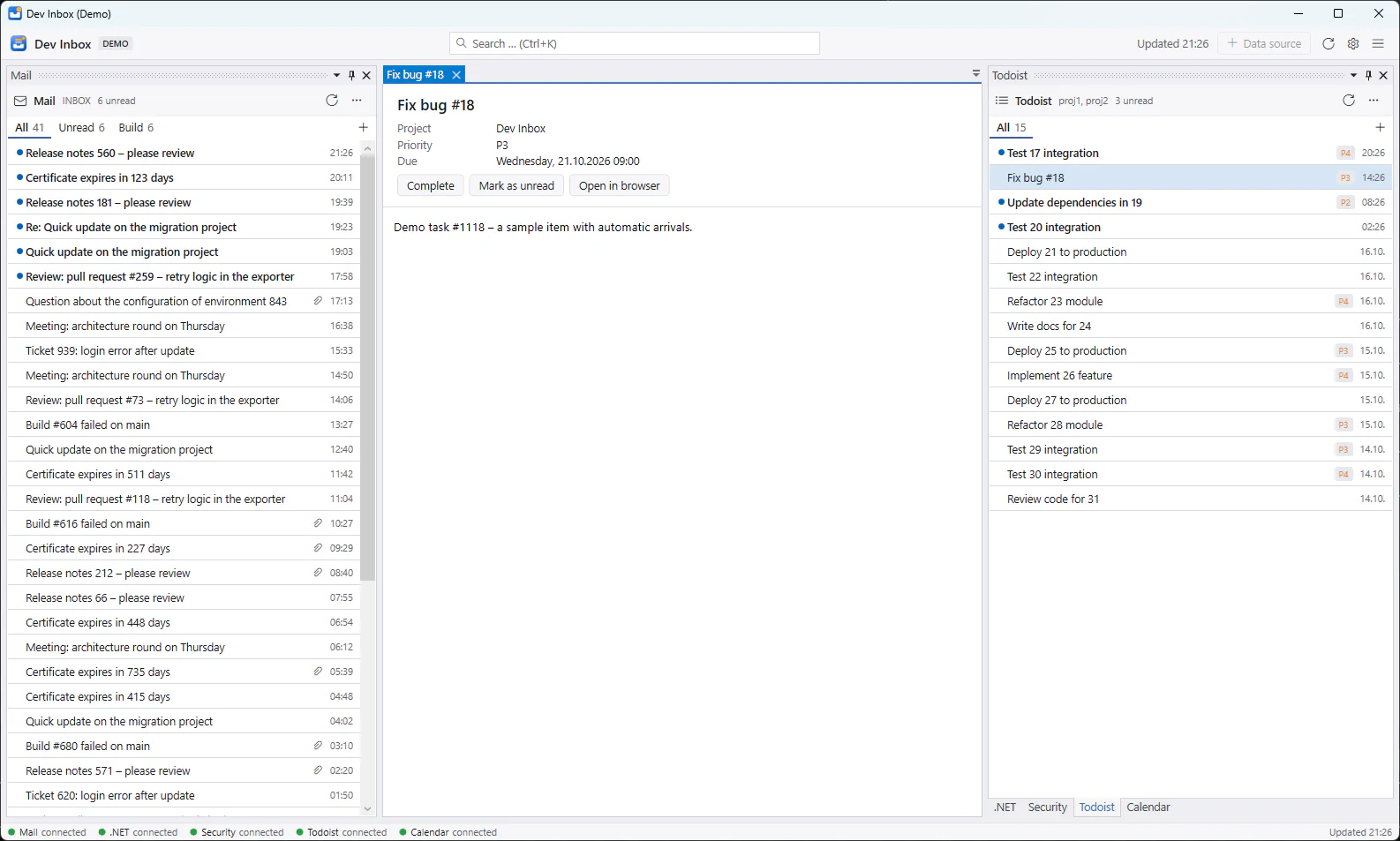
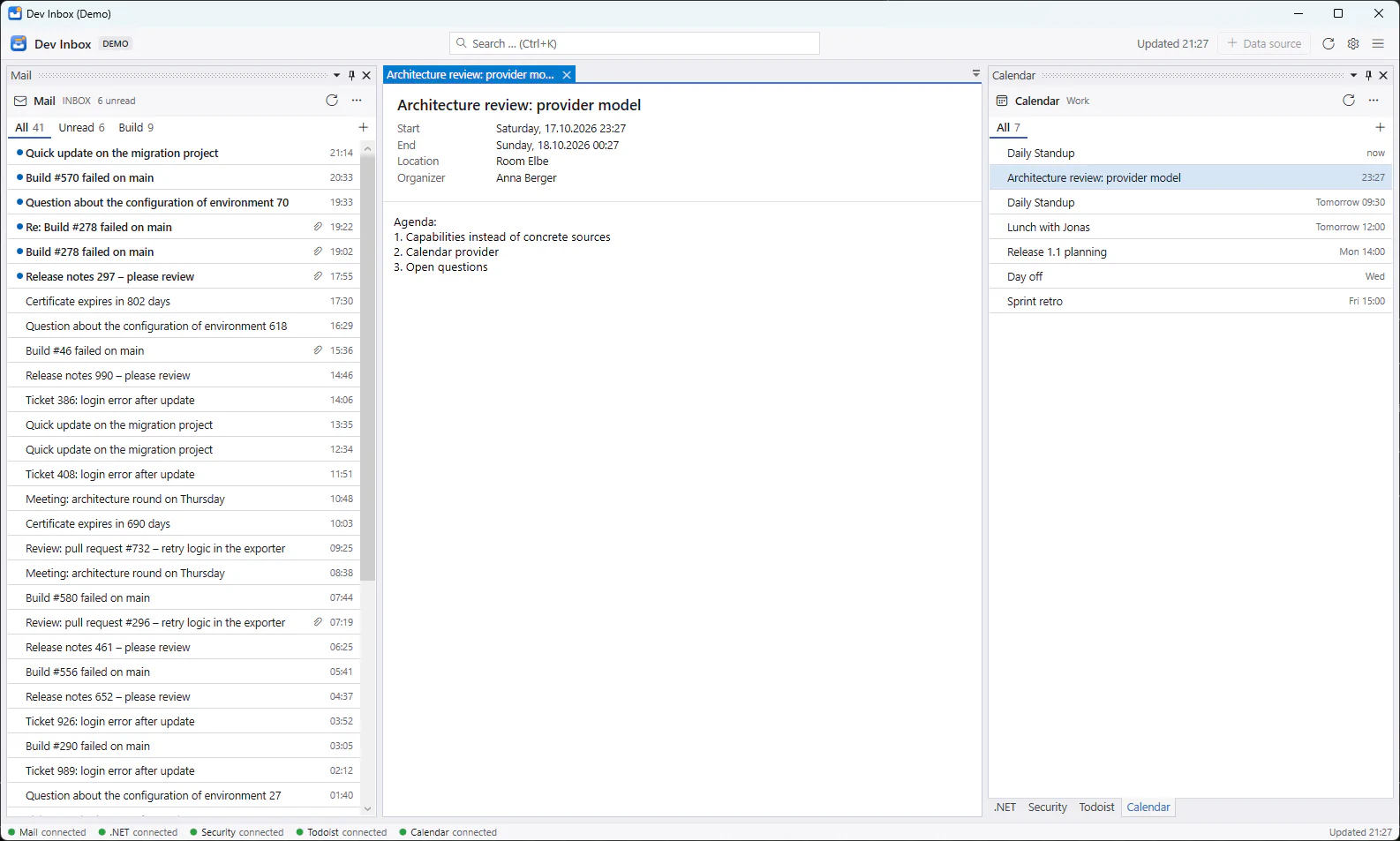
Every source is a panel you can dock, stack or pin. Open items land as tabs in the middle, so a mail, a ticket and a pull request can sit side by side.
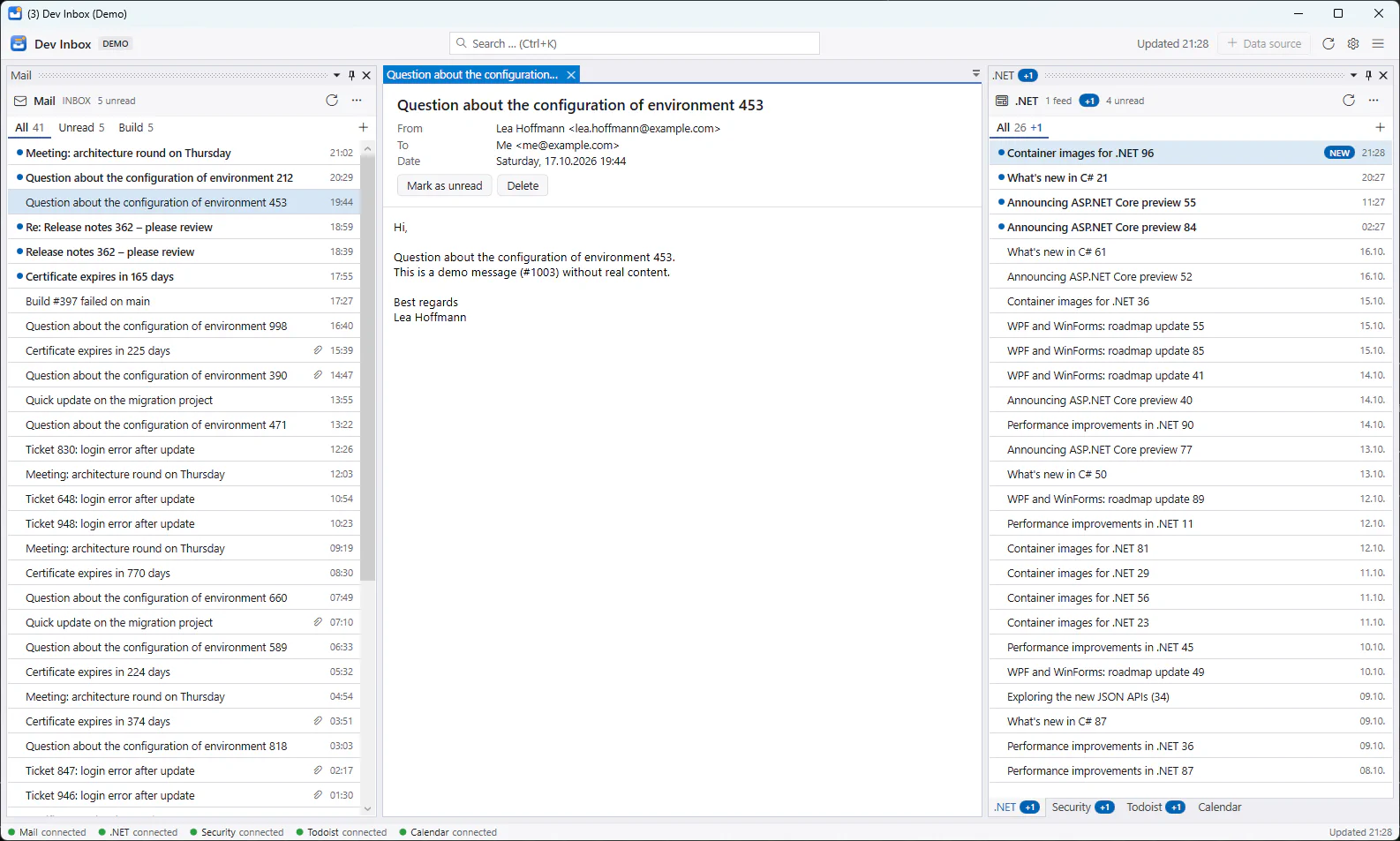
- The window title counts new items
- Unread stays bold until you open it
- Open items as tabs in the middle
- +1 on every panel with new items
- New rows are highlighted
Track time on Jira tickets. Book it when it suits you.
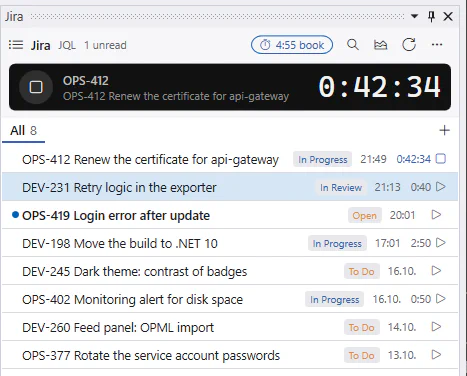
Every Jira panel has a timer. Start it on the ticket you're working on, switch when you switch, and book the sessions as worklogs at the end of the day or the week.
Start the timer
Press T or the play button on a ticket. Starting another ticket stops the current one, even across panels and Jira servers.
Keep working
The timer keeps counting by the clock, also through a restart. Tickets outside your filter are found with the search button in the panel header.
Check the week
"Book time" lists every session by day, like a time sheet. Fix a start time, shorten a session, add a comment and save it for later.
Book
Each session becomes its own Jira worklog with its real start time. Booked sessions leave your PC.
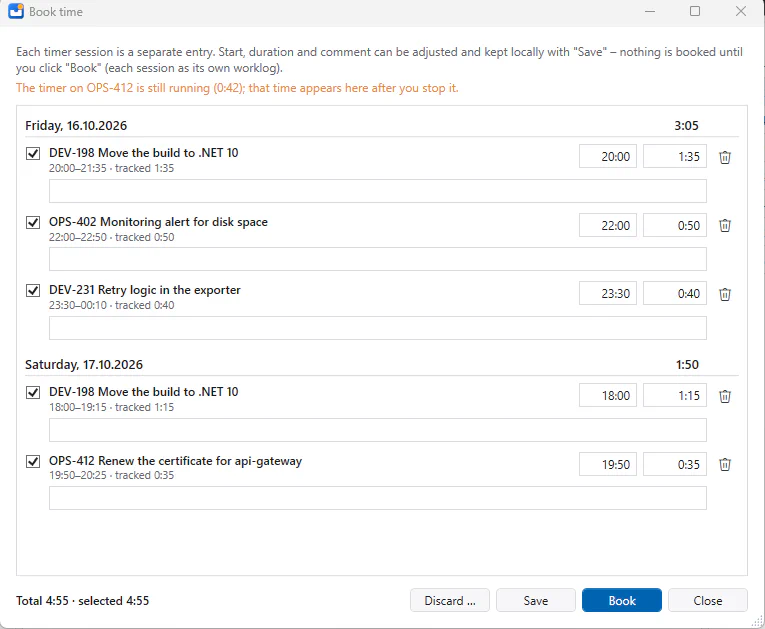
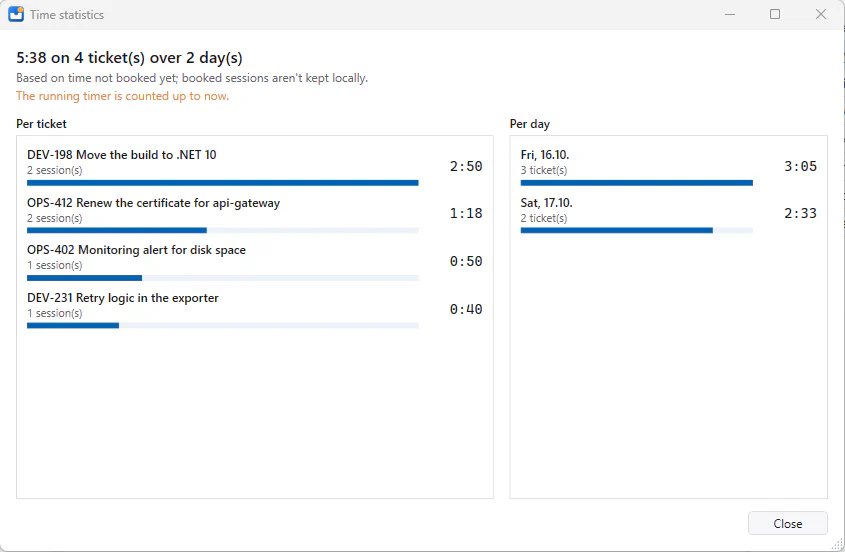
Works with Jira Cloud and Jira Data Center / Server. Booking needs the "Work on issues" permission. Until you book, the sessions are kept only on your PC.
Notice what's new
When a panel refreshes, the rows that weren't there before light up. You see which panel changed and which rows are new without reading the whole list.
- Highlighted arrivals
- New rows get an accent background and a "NEW" pill. The highlight fades after the panel has been on screen for a few seconds, or when you open the item.
- Counts where you look
- Each panel shows "+3" in its header and on its tab, even when it's docked out of sight. Filter tabs count their own new items.
- New since last time
- Items that arrived while the app was closed are marked new at the next start, so nothing slips by over the weekend.
- A nudge when you're elsewhere
- If the window is in the background, the taskbar button flashes and the title shows the count, for example "(5) Dev Inbox". You choose which panels may do that.
- The list stays put
- New rows above the visible area don't push the list around. A small "▲ 3 new" button takes you up when you're ready.
Act without switching apps
Most of what you'd open a browser tab for can be done right where the item is.
- Complete Todoist tasks
- Press E or click "Complete". Recurring tasks move on to their next date.
- Book time to Jira
- Start a timer on a ticket, stop it when you're done and book the worklog with a comment.
- Handle mail
- Read with images blocked until you allow them, open attachments, mark as unread, delete.
- Search everything
- Ctrl+K searches every loaded item across all panels, and Jira on the server too.
- Read the full article
- Feed panels can show the article text or the web page itself, without leaving the app.
Arrange it your way
Built like a trading desk. Every source is a panel you can dock, stack, pin or close.
- As many panels as you need
- Several mailboxes, Jira servers, GitHub connections and Todoist accounts, and any number of feed panels with several feeds each.
- Saved filter tabs
- Each panel keeps its own tabs, like "Unread", "Build failures" or "Assigned to me", with live counts.
- Keyboard first
- Arrow keys to move, Enter to open, Space to toggle read, Ctrl+W to close a tab.
- Light and dark
- Pick a light or dark theme. Your panel layout is kept between starts.
- English and German
- Dev Inbox follows your Windows display language. You can also pick one in the settings.
Your inbox stays on your PC.
Dev Inbox has no server and no account with us. It talks directly to your mail server, your feeds and the APIs you connect, and nowhere else.
- No cloud, no telemetry. There's no Dev Inbox service in between, and the app doesn't report usage.
- Passwords in Windows. Passwords and API tokens are kept in the Windows Credential Manager, never in a file.
- Mail isn't stored. Messages are loaded from your server when you need them. Opened attachments are deleted again.
- Logs without content. Logs record technical details like timings and error codes, never subjects or bodies.
- TLS, always. Mail connections require TLS, and certificate checks can't be switched off.
- Safe rendering. Mail and feed content is shown with scripts off and remote images blocked until you load them.
Download Dev Inbox
Copy the file anywhere and start it. Settings live in your user profile, so the next version is just a new file.
- Version
- 1.0.0
- Size
- 65 MB
- Runs on
- Windows 10 and 11, 64-bit
- Languages
- English and German
- Needs
- Nothing else. No installer, no admin rights, no .NET.
Want to look around first? Start it with DevInbox.exe --demo to get sample mail, feeds, tasks and a calendar, no accounts needed.
The file isn't code-signed yet, so Windows SmartScreen may ask you to confirm. Choose "More info", then "Run anyway".
Questions, ideas, a source you'd like to see?
Send a message and you'll get an answer by e-mail. You can also write to hello@devinbox.app.